> ## Documentation Index
> Fetch the complete documentation index at: https://docs.ally.security/llms.txt
> Use this file to discover all available pages before exploring further.
# Schedule and Record Tabletops on Google Meet
> Schedule and record a tabletop exercise on Google Meet so Ally Security can ingest the recording, generate a transcript, and produce an after-action report.
This method allows you to invite Asa (our bot) to your live meeting using a Google Meet link. This requires that the meeting has already started and there is at least one participant in the meeting who can admit Asa from Google Meet's lobby.
Join your Google Meet meeting and copy the meeting link from the address bar or by clicking the meeting info button.
Navigate to your Ally Security dashboard and paste the Google Meet link to invite Asa to join the meeting.
When Asa requests to join, admit the bot from the Google Meet lobby. Any participant in the meeting can approve Asa's entry. If needed, use the three-dot menu next to Asa in the participant list and select **Admit entry**.
This method allows you to schedule Asa (our bot) to automatically join your future Google Meet meetings by adding Asa as a meeting participant.
Important note: Do not use the schedule for future (i.e. inviting Asa via calendar invite) **unless you are scheduling >30 minutes in advance.** For short notice invites, use "Meeting in Progress" tab.
From your dashboard, copy your unique Asa email address that will be used to invite the bot to meetings.
 When creating your Google Meet meeting or calendar event, add your Asa email address as an attendee.
Check that Asa has accepted the meeting invitation. You should see the acceptance in your calendar or meeting details.
When the meeting starts, admit Asa from the Google Meet lobby when prompted. The bot will appear as your designated Asa email address. If needed, use the three-dot menu next to Asa in the participant list and select **Admit entry**.
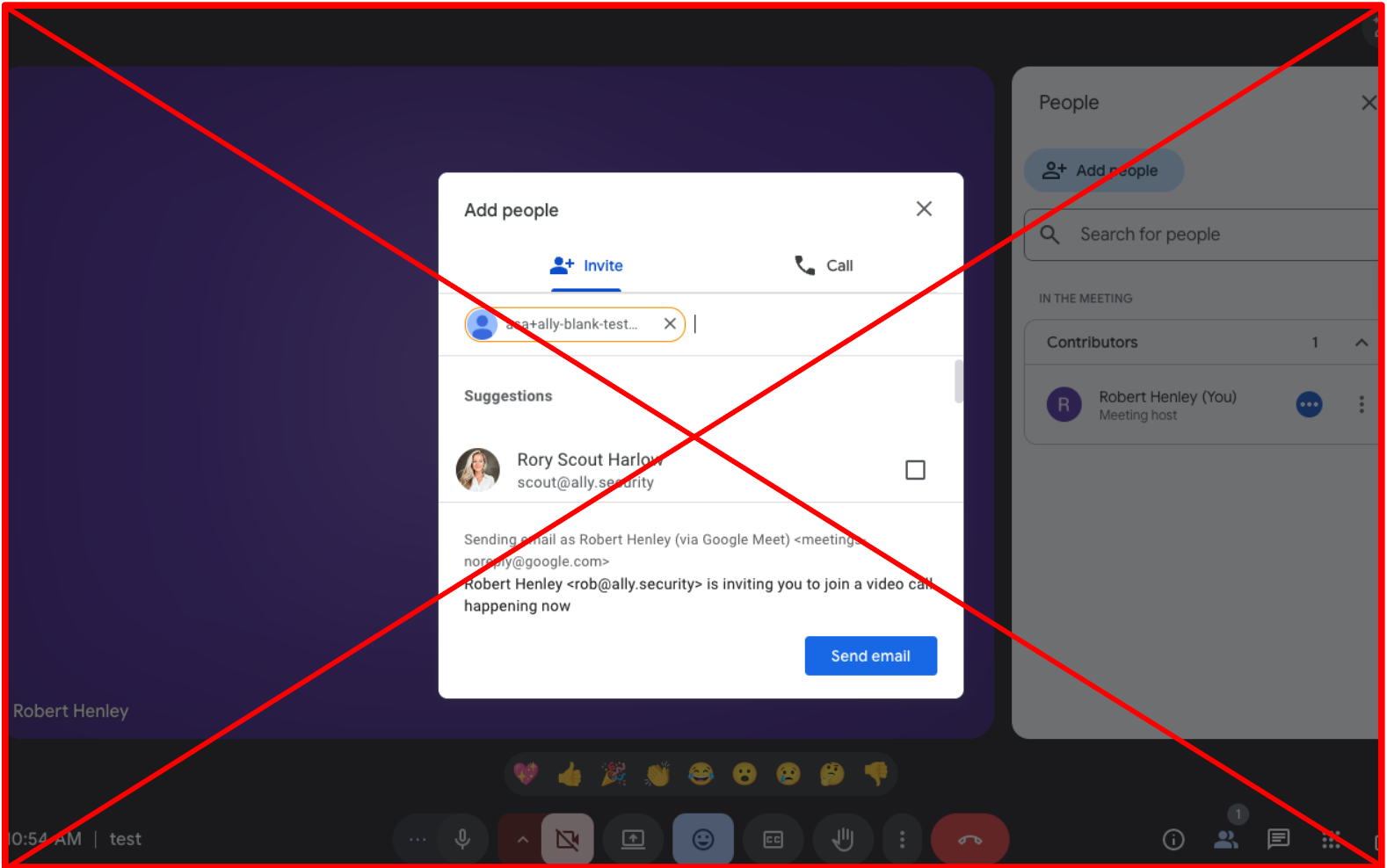
**Note: You cannot invite Asa through the Google Meet interface, you must add the link to the Ally console.**
### Limitations
The following Google Meet features are currently not supported:
| Feature | Status |
| ----------------------- | ------------- |
| Google Meet Livestreams | Not supported |
| Breakout Rooms | Not supported |
Contact us at [support@ally.security](mailto:support@ally.security) if you need any of these capabilities.
### Recording Behavior
No recording permission is needed for Google Meet calls. This means that as long as Asa (our bot) is in the call, it will be able to record.
### Joining Behavior
By default, Asa (our bot) needs to be **manually admitted** into calls and will appear as an "anonymous" user.
Google Meet may **visually identify Asa as a bot** to participants (for example, with a bot label or indicator). That visibility change does **not** affect Asa's ability to join the call or record the meeting after admission—it only makes it clear which participant is the bot.
When Asa attempts to join a Google Meet call, a dialog will be displayed to participants asking to admit Asa. Any signed-in participant in the host's Google Workspace can let Asa in. You can also admit Asa from the participant list: open the **three-dot menu** next to Asa and select **Admit entry**.
### Frequently Asked Questions
By default, Asa (our bot) appears as an anonymous user and needs manual admission to Google Meet calls. This is a security feature of Google Meet to prevent unauthorized access to meetings.
Any signed-in participant in the host's Google Workspace can admit Asa into the meeting.
Google Meet may display a bot indicator for Asa so participants can see which join request comes from a recording bot. **This does not block Asa from joining or recording** once someone admits the bot. If Asa is waiting to join, use the lobby prompt, or open the **three-dot menu** next to Asa in the participant list and select **Admit entry**.
A Google Meet livestream allows users to broadcast a video meeting to a large audience in a view-only format. This is particularly useful for events where interaction is not required from the viewers, such as webinars.
Google Meet livestreams are currently not supported by our recording system.
No, Google Meet breakout rooms are not currently supported. The recording will only capture the main meeting room.
No special recording permissions are required for Google Meet calls. As long as Asa is admitted into the call, it will be able to record the meeting.
When creating your Google Meet meeting or calendar event, add your Asa email address as an attendee.
Check that Asa has accepted the meeting invitation. You should see the acceptance in your calendar or meeting details.
When the meeting starts, admit Asa from the Google Meet lobby when prompted. The bot will appear as your designated Asa email address. If needed, use the three-dot menu next to Asa in the participant list and select **Admit entry**.
**Note: You cannot invite Asa through the Google Meet interface, you must add the link to the Ally console.**
### Limitations
The following Google Meet features are currently not supported:
| Feature | Status |
| ----------------------- | ------------- |
| Google Meet Livestreams | Not supported |
| Breakout Rooms | Not supported |
Contact us at [support@ally.security](mailto:support@ally.security) if you need any of these capabilities.
### Recording Behavior
No recording permission is needed for Google Meet calls. This means that as long as Asa (our bot) is in the call, it will be able to record.
### Joining Behavior
By default, Asa (our bot) needs to be **manually admitted** into calls and will appear as an "anonymous" user.
Google Meet may **visually identify Asa as a bot** to participants (for example, with a bot label or indicator). That visibility change does **not** affect Asa's ability to join the call or record the meeting after admission—it only makes it clear which participant is the bot.
When Asa attempts to join a Google Meet call, a dialog will be displayed to participants asking to admit Asa. Any signed-in participant in the host's Google Workspace can let Asa in. You can also admit Asa from the participant list: open the **three-dot menu** next to Asa and select **Admit entry**.
### Frequently Asked Questions
By default, Asa (our bot) appears as an anonymous user and needs manual admission to Google Meet calls. This is a security feature of Google Meet to prevent unauthorized access to meetings.
Any signed-in participant in the host's Google Workspace can admit Asa into the meeting.
Google Meet may display a bot indicator for Asa so participants can see which join request comes from a recording bot. **This does not block Asa from joining or recording** once someone admits the bot. If Asa is waiting to join, use the lobby prompt, or open the **three-dot menu** next to Asa in the participant list and select **Admit entry**.
A Google Meet livestream allows users to broadcast a video meeting to a large audience in a view-only format. This is particularly useful for events where interaction is not required from the viewers, such as webinars.
Google Meet livestreams are currently not supported by our recording system.
No, Google Meet breakout rooms are not currently supported. The recording will only capture the main meeting room.
No special recording permissions are required for Google Meet calls. As long as Asa is admitted into the call, it will be able to record the meeting.